Logitech Casa Pop-Up Desk Review
The Logitech Casa Pop-Up Desk is a Bluetooth keyboard, touchpad, and laptop stand wrapped in one, but it's heavy, and using it isn't as intuitive as we'd like.
Our Verdict
Save time. Get access to brief summaries of our reviews so you can browse and make decisions more efficiently.
Pros
- The stand puts your laptop at a convenient viewing angle
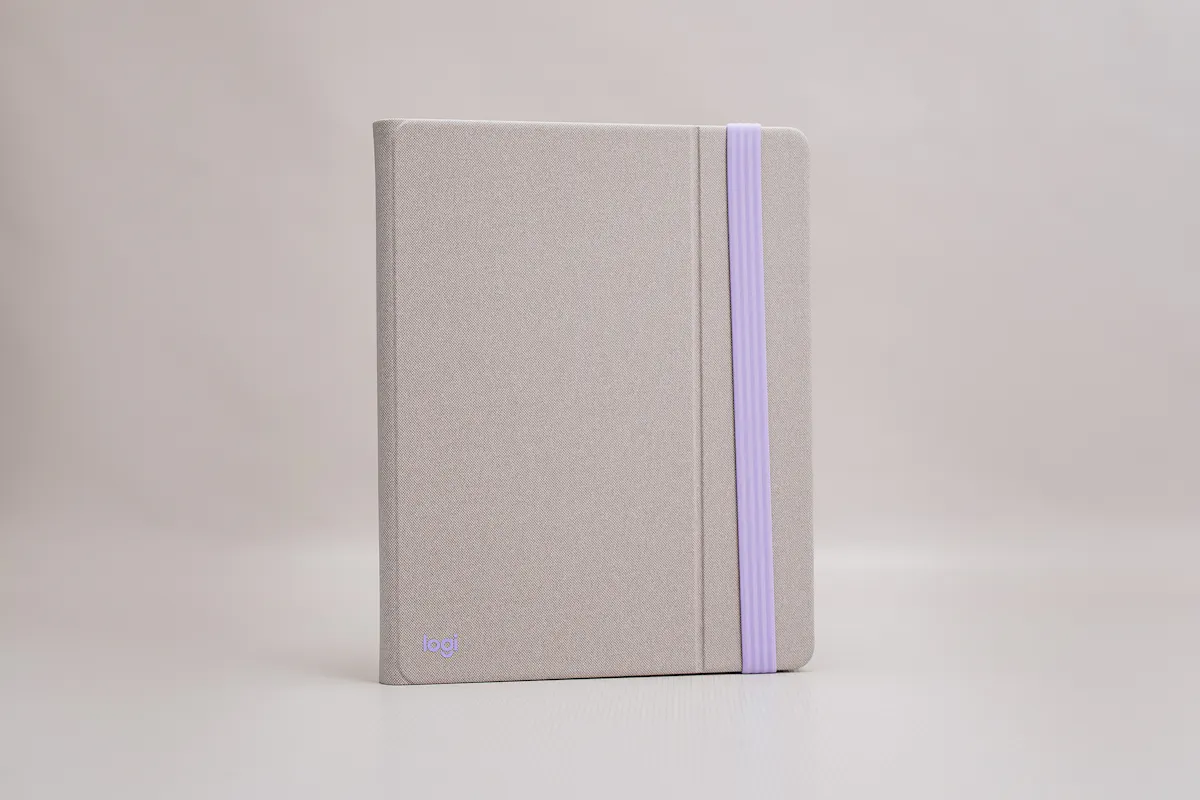
- It looks like a journal on the outside
- The components seem to connect more quickly than other options
Cons
- The touchpad isn't as smooth to use as the one on your computer
- It's quite heavy
- The keys are raised more than those on some laptops, so it may take some getting used to
Technical Details
-
Weight (lb)
2.65 lb (1.2 kg)
-
Dimensions
11.41 in x 9.05 in x 1.14 in (29 x 23 x 2.9 cm)
-
Notable Materials
Recycled Plastic, Plastic
-
Manufacturing Country
China
-
Warranty Information
Full Review
You know we love to work remotely. After all, we developed an entire Digital Nomad Packing List to help fellow remote workers find the best setup! So, naturally, we’re always interested in trying out new accessories to help us get the job done outside of the office.
The Logitech Casa Pop-Up Desk seems like the perfect all-in-one option for using a laptop without developing that telltale hunch or sore neck at the end of the work day or gaming session. Is it the stuff of a digital nomad’s dreams? Let’s find out.
The Rundown
If you’ve had even a rudimentary introduction to Spanish, you know that “casa” means home, so it’s no surprise that the Logitech Casa Pop-Up Desk is meant to be a home for all of your laptop accessories. From the outside, it looks like a notebook or journal, with a textured exterior and a stretchy silicone band holding it closed. However, this isn’t the place to jot your to-do list or hopes and dreams, unless you’re typing it into an online blog or digital diary, that is.
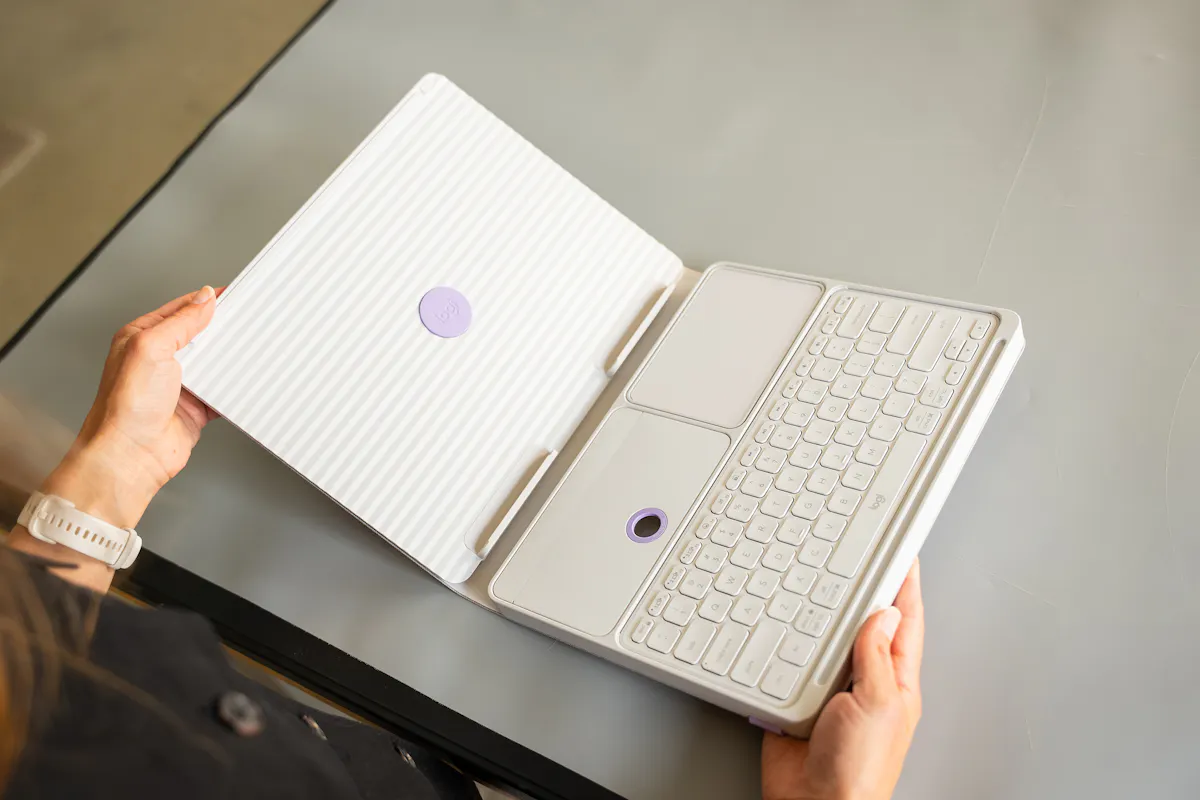
Instead, when you open it up, you’ll find a ridged panel on the left. That’s the laptop stand. Pull it away from the front of the Casa, and the laptop holders snap into place magnetically in the grooves on the other side. It’s meant to place your laptop at a more ergonomic angle when you are sitting at a table or countertop, but there’s no way to adjust it higher or lower if you want to stand or are simply taller. To be fair, it does raise the screen higher than it would be if you were simply using the laptop solo, but it’s worth noting if you often change positions or have a longer torso. It may still be too low for you.
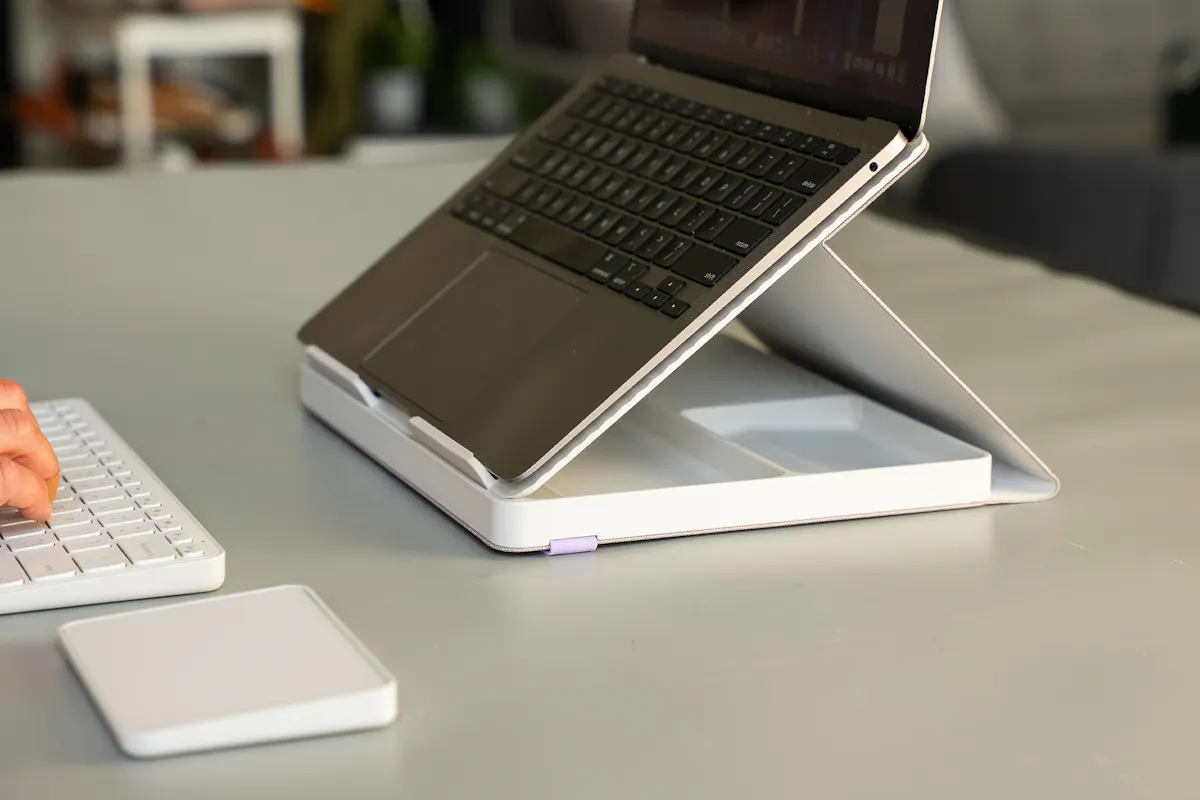
Logitech doesn’t specify the size of laptop the Casa Pop-Up Desk is supposed to accommodate, but it holds our 13-inch MacBook Air nicely. That’s a thin computer with a smaller footprint, though, and some users have reported that thicker, larger laptops can slide off, so this might not work as well for your 17-inch gaming PC as it does for your everyday laptop.
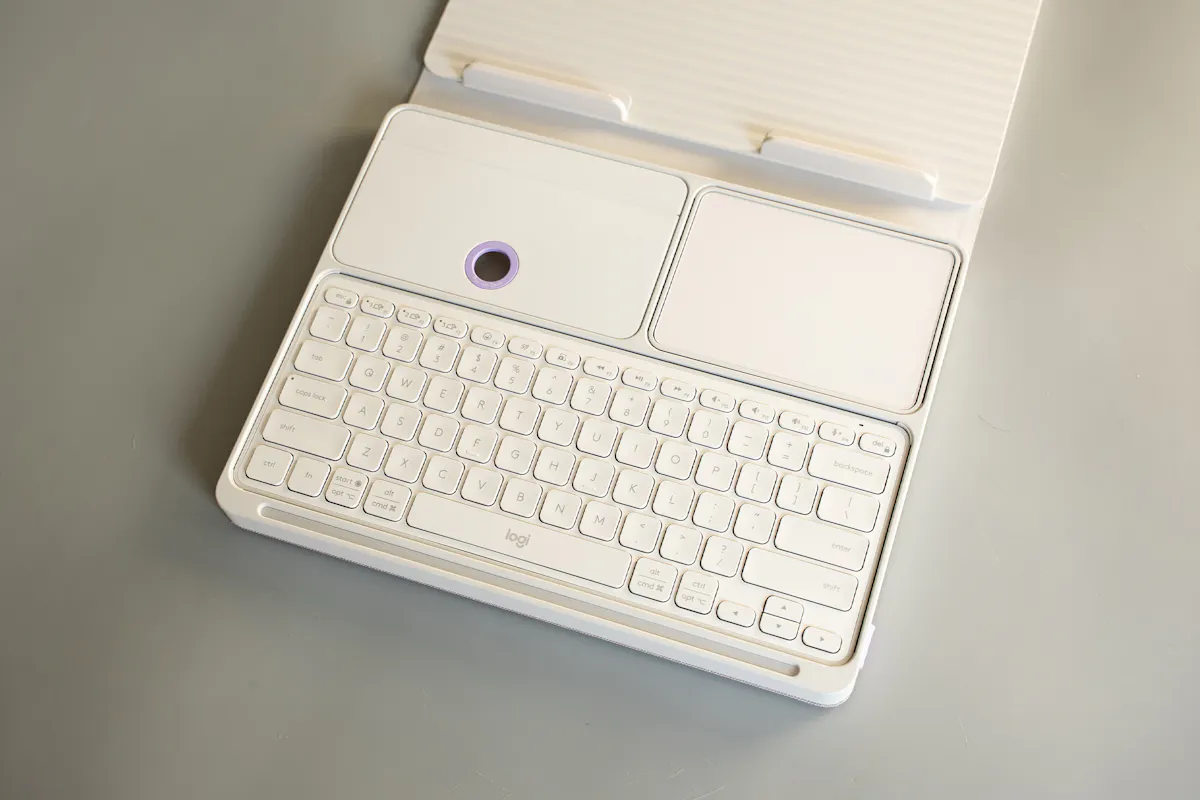
On the right side of the Casa is the keyboard, touchpad, and a third, covered section. You lift it by sticking your finger in the hole and pulling; that’s where the included USB-C charging cable is stored. What’s nice is that you can charge both the keyboard and touchpad (individually) while still using them, unlike some other options, like an Apple Magic Mouse. Both accessories charge very quickly, even while using them, and hold a charge for quite some time. The keyboard’s battery life is rated for up to 5 months, and the touchpad for up to 3 weeks; they’re both at 95% after about a week’s worth of use.
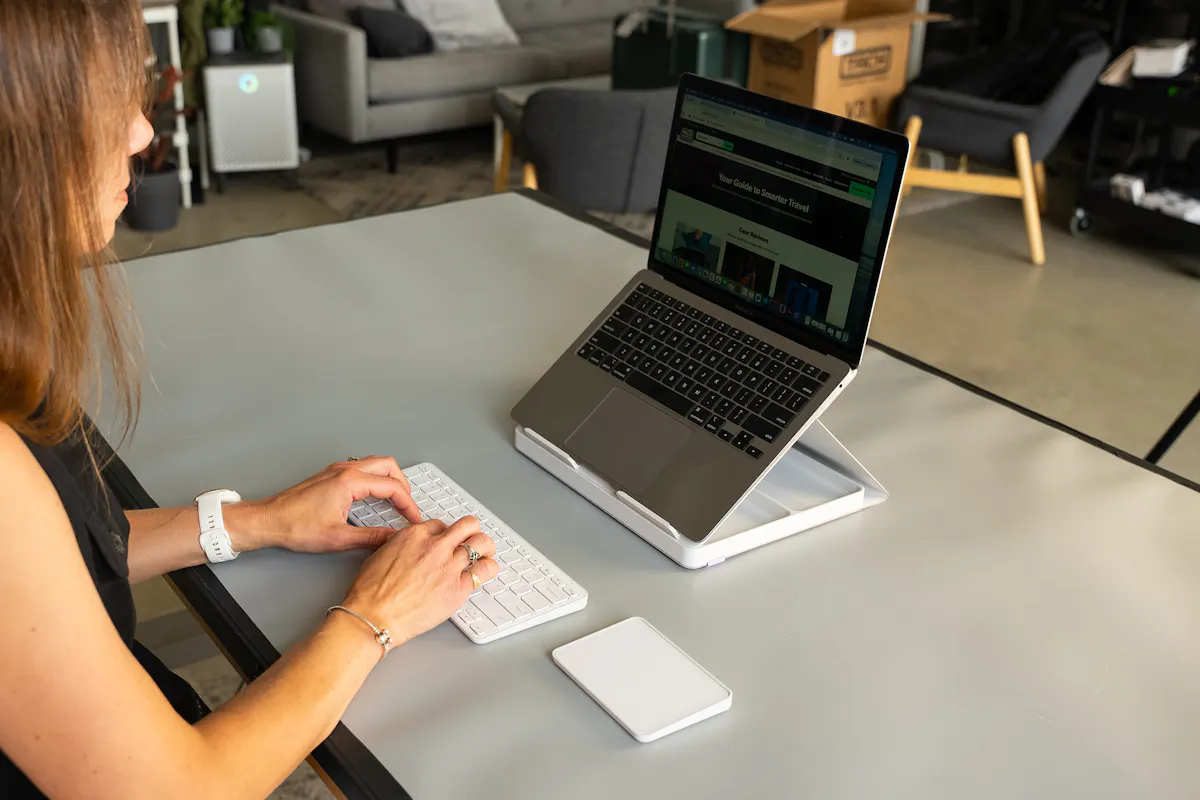
To release the touchpad and keyboard from the Casa, press the bottom-right corner to pop up the top. Then you can grab them out of the housing and turn them on with the small switches on the top-right edge. Pairing with the first device is fairly simple. Turn the keyboard on, and the F1, F2, or F3 key will start blinking. Open the Bluetooth settings on your computer, select Casa Keys, and enter the code it gives you to finish pairing. To pair it to a second and third device, hold down one of the F keys that didn’t connect to your first device for three seconds. It will start blinking, and you can repeat the process.
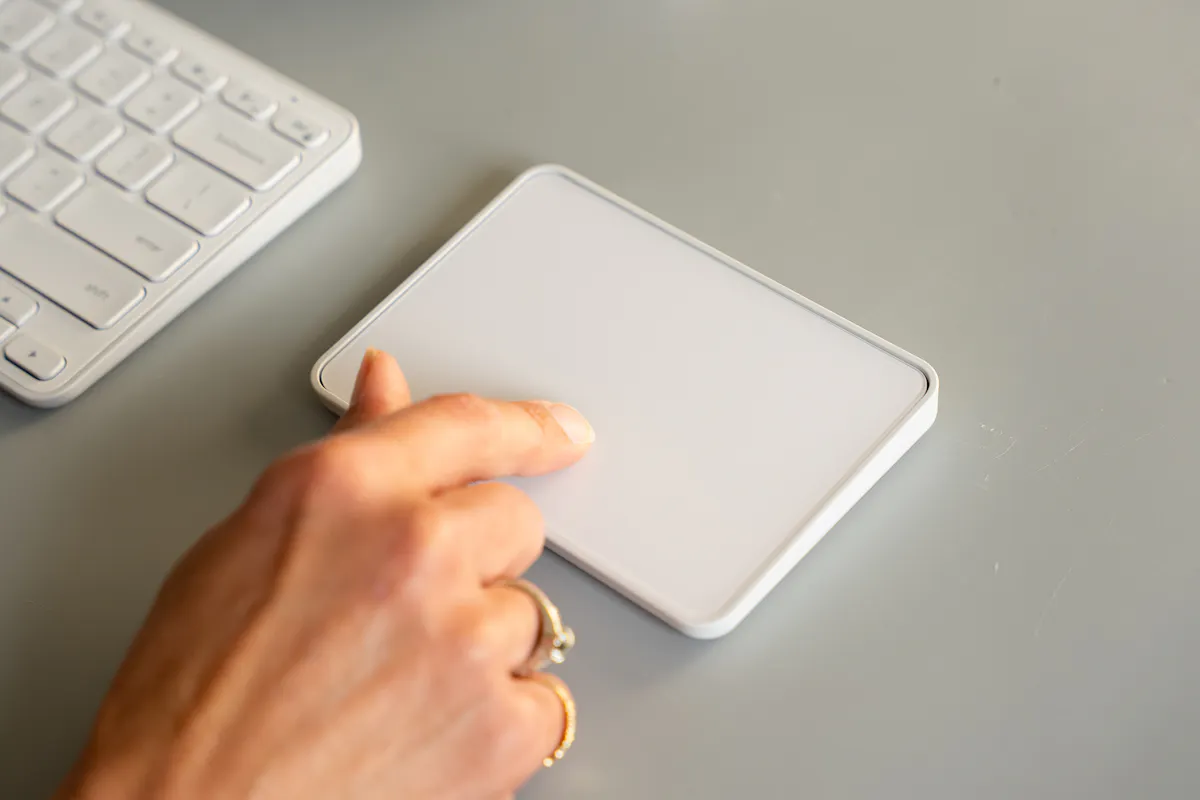
The touchpad connects similarly. Switch it on for the first time near your laptop and open the Bluetooth settings. You should see an option to connect to Casa Touch. Click it, and you’re in business. To connect it to a second or third device, look underneath the touchpad, and you’ll find a button near the upper right-hand corner adjacent to three LEDs. Press it to switch to the second device option, then repeat the pairing process. Logitech has a comprehensive how-to on its site, including videos, if you need more help.
From there, you should be able to type, click, and scroll just as you do on your laptop. We found the user experience with the keyboard seamless. It’s a little noisier than the keyboard on our MacBook Air and Apple Magic Keyboard, but it otherwise works well. Since it’s designed to work with both Apple and PC, there are some keys you might miss if you’re used to a Mac, like hitting F3 to see all of your open windows at once, and there are some keys that just don’t seem to work with a Mac, like the Emoji key.
The touchpad is a slightly different story. Out of the box, we found it inferior to the trackpad on our laptop. It wasn’t as responsive and scrolled jerkily instead of smoothly. Opening the mouse settings on our Mac didn’t help anything. However, there is a fix: the Logitech Options+ app.
We know, we know …. We’re all sick of having to install a new app for everything, but in this case, it matters. Installing the Logitech Options+ app makes the touchpad experience much better. At first, our tester found herself avoiding using the touchpad because it was just so clunky. However, after a few tweaks on the app—and perhaps some magic that happens by installing it on a Mac to make it know more Mac gestures intuitively—it worked much better, with smoother scrolling and the return of some gestures we missed, like swiping back with two fingers to go to a prior website. It’s still not as smooth as using the built-in trackpad on the laptop, but it’s 80% better than using the Casa Touch without the Options+ app.
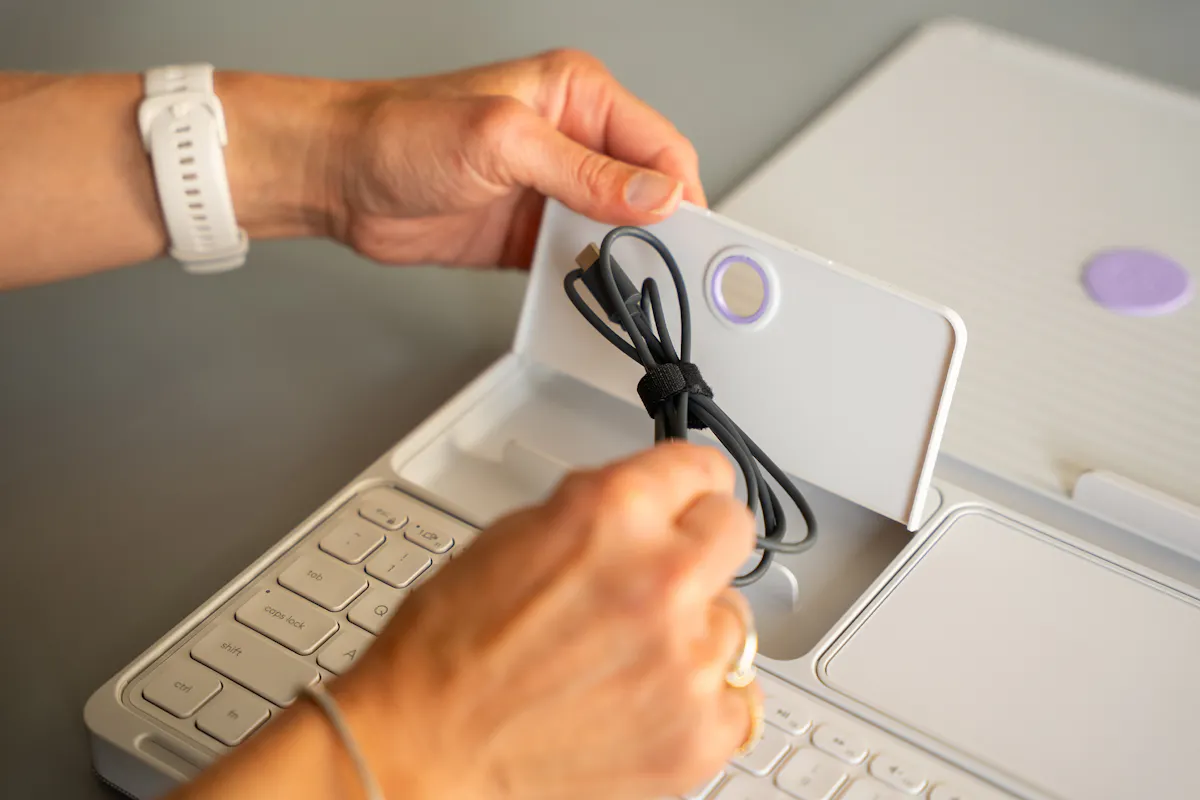
Nothing really changes on the keyboard when using the app, though it gives you the option to keep it in a standard Mac layout. However, that didn’t restore functionality to our F3 key or make the Emoji key magically start working, so we’re unclear exactly what it is doing.
One more note on the keyboard: some users may miss a backlight. We can imagine that its lack helps with battery life, but it will make it harder to use in darker rooms. The only lights on the keyboard are the LEDs that show which device is connected when you first turn it on, and another LED in the right corner that turns red when your battery gets low. A similar light shines in the same spot on the touchpad, as well.
Packability
Packability is a mixed bag with the Casa Pop-Up Desk.
On one hand, it’s nice to have a Bluetooth keyboard, touchpad, and laptop stand all in the size and shape of a hardcover journal. It’s close to A4 paper size, so it’s easy to slide into a daypack or tote, or to stow away on your desk when you’re not using it. The fact that it looks like a notebook or journal from the outside adds to its appeal; it looks much cleaner when closed and stowed away than separate laptop stands, keyboards, and trackpads do. If you prefer things to look clean, cozy, and tidy at the end of the day instead of tech-focused, you’ll be happy with the aesthetics. And it’s much easier to pack all three in a bag when they’re stowed in their “home” than when they’re separate components with different dimensions that don’t necessarily stay upright as you move.
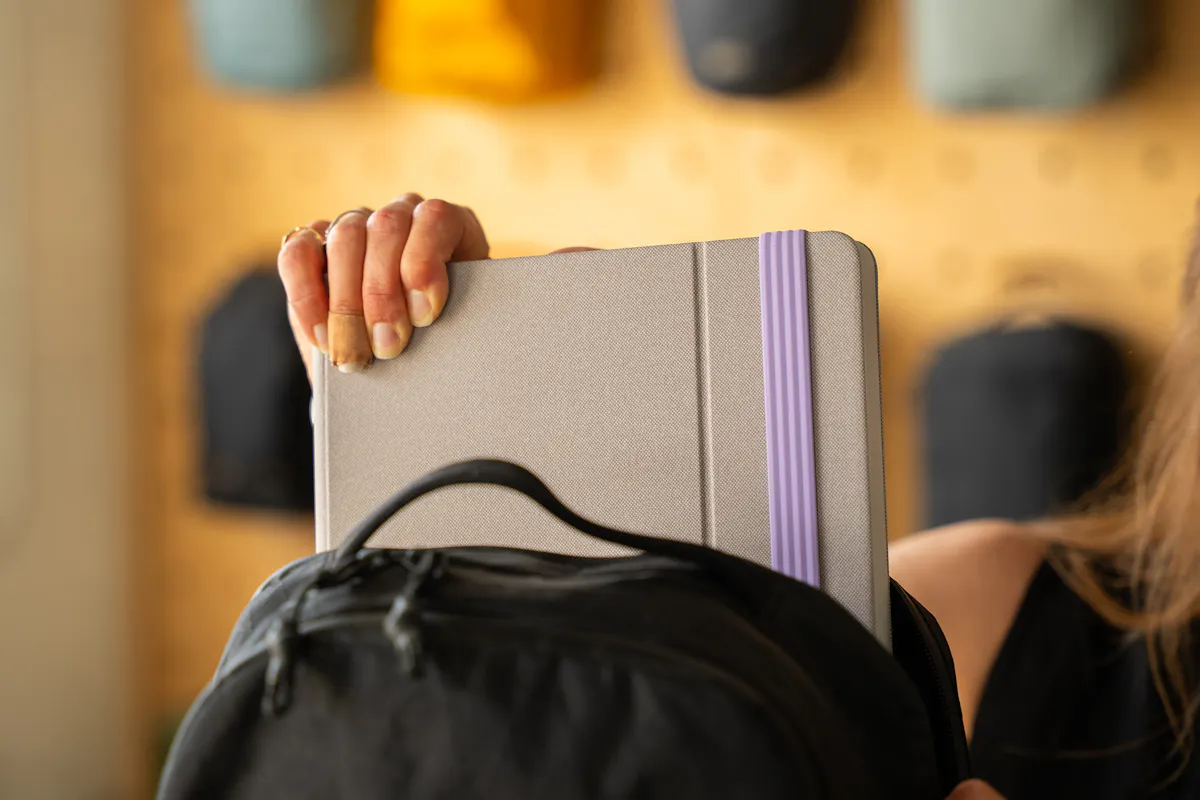
However, while it looks like a book, it weighs more. As you can see above, the entire package weighs 2.65 lbs (1.2 kg), compared with our hardcover A4 notebook, which weighs 1.56 lbs (0.7 kg). There’s no denying you’ll feel it when you add the Casa Pop-Up Desk to your travel bag, and you’ll need to take that into account if you’re traveling with airlines that weigh your bag. It’s thicker than our MacBook Air, too, so it might take up more space than the computer it’s meant to hold, depending on your device.
Quick Comparison
We don’t have experience with any other 3-in-1 option to compare to the Logitech Casa Pop-Up Desk, but we do have experience using other versions of the components separately.
For Mac users, the Apple Magic Keyboard offers an experience that’s exactly what you’re used to on your laptop: the keys have the same functionality that you’re used to, and the feel is the same, as well. In comparison, the Casa Keys are a little noisier and not every specialty key functions as you’d expect, but for general use, it works quite well. The Casa Keys weighs 13.22 oz (375 g) on its own, compared to the 0.54 lb (245 g) of the Magic Keyboard, but that’s in line with other Logitech keyboards, like the Logitech Pebble Keys 2 K380S, which functions similarly to the Casa Keys and weighs 14.64 oz (415 g).
The Apple Magic Trackpad weighs 8.16 oz (231 g), compared to the Casa Touch’s 5.64 oz (160 g), so Logitech wins here. Unfortunately, the Casa Touch isn’t as seamless to use as the Magic Trackpad, which feels just like the one we’re used to on our laptop. The Magic Trackpad is seriously one of the best Bluetooth touchpads we’ve ever used. You may have a different experience if you have a PC instead of a Mac. We also wish there were an option to get a mouse with the Casa instead of a touchpad, since the Casa Touch can shift around when you try to click and drag to highlight a phrase and is easy to bump accidentally, leading to unintended actions (new windows, cut-and-paste you didn’t mean to happen, etc.). Sure, we could reduce the touchpad sensitivity in the Options+ app, but we want it to be that sensitive when we’re using it. The Logitech Pebble M350 is easy to use and budget-friendly. While it’s perhaps not as ergonomic as the Casa Touch, we find it less frustrating to use.
Then, there’s the question of a laptop stand. One of our favorites is the Roost V3 Laptop Stand. It has seven height adjustments instead of one and easily accommodates computers of different sizes, with pivoting grips to hold them in place. Because the grips and rests are rubberized, a hefty 16-inch MacBook Pro sits fairly securely even when we tilt the stand side to side at uncomfortable angles, though your mileage may vary with heavier laptops. Still, we feel it’s more accommodating of larger computers than the Logitech Casa. It weighs 6.77 oz (191.9 g), compared to the Casa stand’s 24.33 oz (690 g), and folds down to a skinny 1 in x 1.5 in x 13 in (2.5 x 3.8 x 33 cm) umbrella-like shape.
Packing all three together isn’t as aesthetically pleasing as the Casa Pop-Up Desk, though, and you could easily spend more than $317 at the time of this review on the Roost and Apple Magic accessories, compared to the less-than $200 price tag of the Logitech. What’s right for you? That will depend on your thoughts on functionality, aesthetics, value, and how much you want to stay in one ecosystem.
Usage Timeline
Condition: Excellent
- It looks like a journal when folded
- Hoping this is good for working remotely
- It’s pretty large
Condition: Excellent
- It’s pretty heavy in another bag
- We like the aesthetics
- It didn’t always put a laptop at the best viewing angle



Get your questions about the Logitech Casa Pop-Up Desk answered from our team and the Pro Community right here on the page. Plus, join discussions with other members about gear, guides, and more.
Join Pack Hacker Pro or, Sign In